How to record audio from one supported Windows app
Audio Recorder+ Pro can record audio from one supported running Windows app while excluding other app audio. Select the app and check the live waveform before you start; support depends on the Windows environment and the target app.
Selected app recording versus system audio
System audio records playback from a selected Windows output device and can include more than one app. Selected-app recording targets one supported running app. Use it when you want to keep other app playback out of the saved recording.
Selected-app recording requires Pro. Microphone and system-audio recording are available in the free app. This is audio recording, not screen or video recording.
Preview and record one app
- Install Audio Recorder+ from Microsoft Store and unlock Pro if needed.
- Open the app you want to capture and make sure it is playing audio.
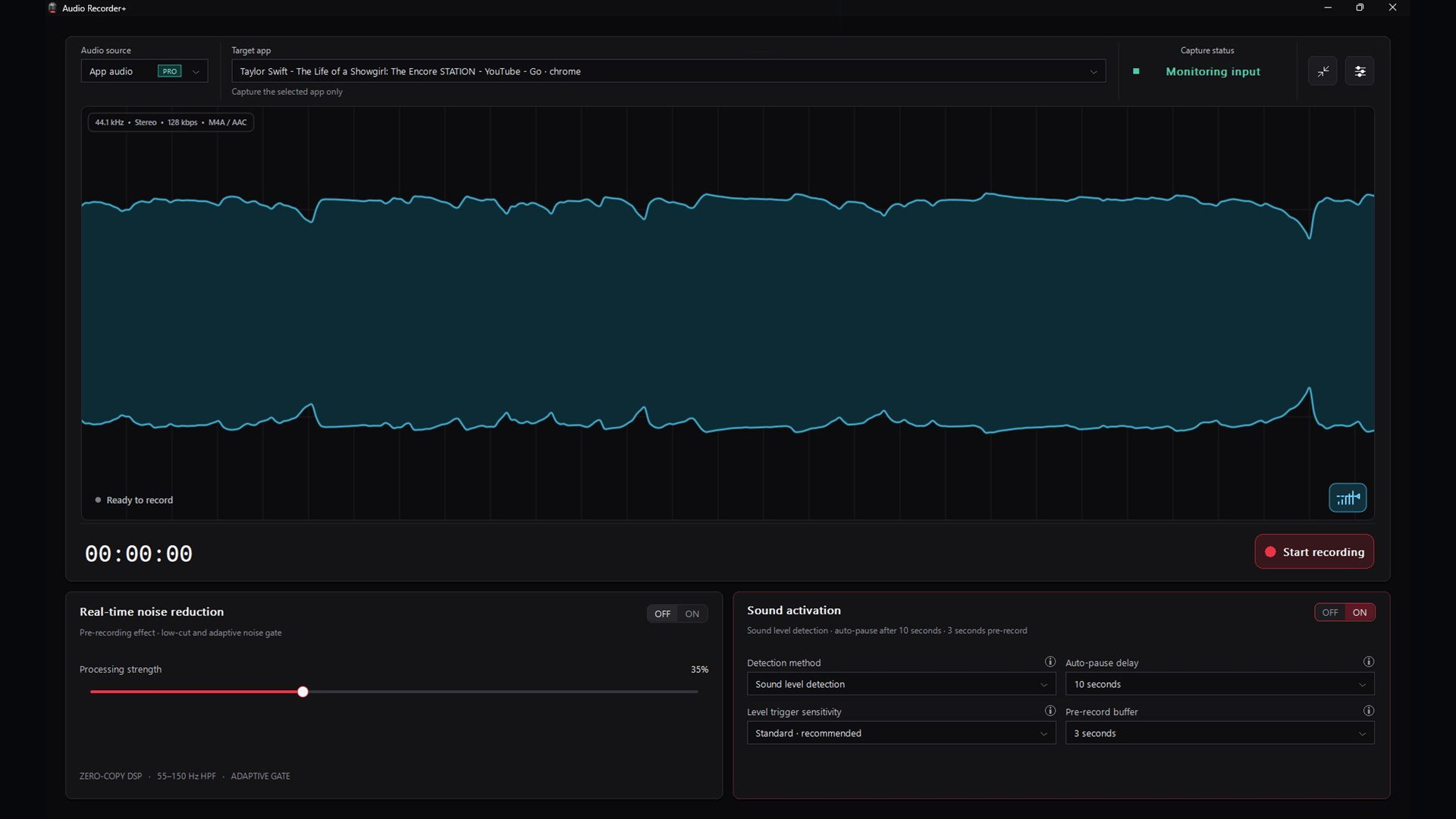
- Choose the selected-app recording source and select the supported running app.
- Watch the waveform and level meter to confirm that the selected app produces a signal.
- Choose your output format and save location, then start recording.
- Make a short test recording and listen to it before recording a longer session.
Compatibility and silent previews
Not every app or Windows environment supports selected-app capture. Audio Recorder+ checks process-loopback availability at runtime. Windows 10 app capture is experimental when that runtime check succeeds; verify support on your own PC rather than assuming that every app can be recorded.
If no signal appears, confirm the target is running and playing audio, then check the selected app again. If app capture is unavailable, system audio recording may suit your task, but it can include playback from other apps. A Pro upgrade does not make an unsupported target compatible.
Choose a file format
Pro supports higher-bit-rate MP3 and M4A/AAC, lossless FLAC, and uncompressed WAV. Choose based on the next step in your workflow, such as sharing, archiving, or editing. See the audio format guide for the differences.
Check the result before a long session
Listen to a short test file to confirm the source and quality. Keep the live waveform visible in the full workspace or compact mode so you can see when the signal changes. Processing stays local on the PC.
Find the source controls in the app
Test whether other apps are excluded
- Select your target app and play audio in it. Confirm that the preview responds.
- Pause the target, then play a sound in a different app. Check that this unwanted sound does not produce the target signal.
- Resume the target and save a short recording. Listen to the file before capturing a longer session.
This is a practical check on your own PC, not a guarantee that every browser, app, or Windows configuration supports isolated capture.
Get Audio Recorder+ for Windows
Check current compatibility and local pricing in Microsoft Store.